


PixelForge Games Logo PixelForge Games Get in Touch
Get in Touch

Getting Started with Unity for Mobile Games

We’ll walk you through setting up your first project, understanding the editor, and building a simple 2D game from scratch. Perfect if you’ve never used game engines before.

12 min read Beginner May 2026
Game developer working on Unity interface with laptop and game controller on desk

Why Unity for Mobile?

Unity isn’t just another game engine — it’s become the industry standard for mobile development. We’re talking iOS and Android games made by studios big and small, from indie creators to teams at major publishers. The reason? It’s actually approachable for beginners while remaining powerful enough for complex projects.

You’ll write your game code in C#, which is a clean, modern language that won’t feel overwhelming if you’re new to programming. Plus, Unity handles the technical complexity of making your game run smoothly on dozens of different phone models. That’s a huge time saver.

The numbers: Over 70% of the top 1,000 mobile games on iOS and Android were built with Unity. You’re learning the tool that actually matters in this space.

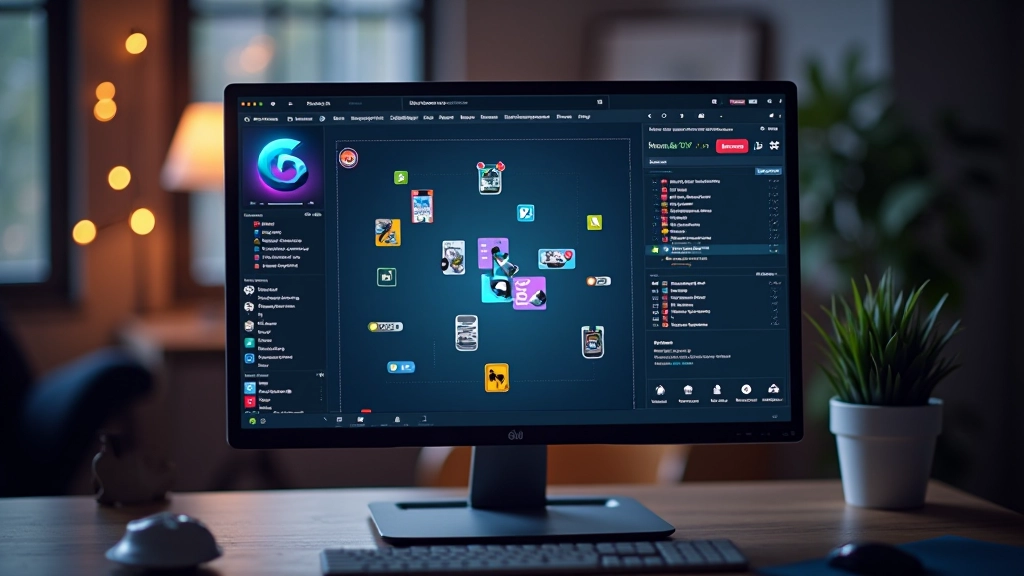
Unity editor interface showing game scene with 2D sprites and development tools

Setting Up Your First Project

Here’s what you’ll do. First, download Unity Hub from unity.com — it’s free and handles all your installations and project management. Don’t worry about which version to use; we’ll start with the current LTS (Long Term Support) release. That’s the stable version designed for production work.

Once you’ve installed the editor, create a new project and choose “2D” as your template. This sets up the right camera, default layers, and physics system for 2D games. Mobile games don’t need fancy 3D graphics to be engaging — some of the most addictive games ever made run perfectly in 2D.

1

Download and Install

Get Unity Hub, select the LTS version, let it finish installing.

2

Create 2D Project

Open Unity Hub, create new project, select 2D template.

3

Explore the Editor

Familiarize yourself with Scene, Game, and Inspector panels.

Person sitting at desk with multiple monitors showing Unity development environment and code editor

Understanding the Unity Editor

When you open a new project, the editor layout looks overwhelming at first. You’re seeing maybe six different panels at once. But don’t panic — you’ll only really use three of them constantly: the Scene view, the Inspector, and the Hierarchy.

Scene View

This is your game world. You’ll place objects here, arrange them, and see how they interact. It’s like a digital canvas where you build everything.

Hierarchy Panel

Shows every object in your scene in a list. You’ll click here to select things, organize your scene structure, and manage parent-child relationships.

Inspector Panel

When you select an object, its properties appear here. Position, rotation, scale, components — you’ll adjust everything through this panel.

Game View

This shows what your game actually looks like to players. Press Play to run your game in the editor and see it in action immediately.

The truth is, you’ll ignore most of the other panels for now. Focus on these four and you’re already 90% of the way to understanding how the editor works. The rest you’ll discover naturally as you build.

Building Your First Game (It’s Simpler Than You Think)

Let’s build something real. You’re going to create a basic 2D game where the player controls a character moving left and right, avoiding obstacles that scroll down the screen. Sound familiar? That’s because it’s the foundation for dozens of mobile games.

Start by creating a new GameObject — that’s just a container for game objects in Unity. Right-click in the Hierarchy, select 2D Object, then Sprite. This becomes your player character. You can grab a simple sprite from the Unity Asset Store (free) or draw a basic square just to test your game logic.

Next, you’ll add a Rigidbody2D component to your player. This tells Unity to treat your character like a physical object that can move and collide with things. Don’t overthink the settings — the defaults work fine for beginners.

Sample C# Code: Basic Player Movement

void Update() {

float moveInput = Input.GetAxis(“Horizontal”);

rb.velocity = new Vector2(moveInput * speed, rb.velocity.y);

}

That code snippet? That’s literally all you need to make your player move left and right with arrow keys. Input.GetAxis reads keyboard input, and you’re applying that to your character’s horizontal velocity. The Rigidbody handles the physics automatically.

Code editor displaying C# script with syntax highlighting and game development IDE interface

Educational Information

This guide is educational and informational in nature. While we’ve covered fundamental concepts, individual game development projects vary widely based on scope, platform requirements, and technical specifications. We recommend consulting official Unity documentation and community resources for the most current best practices and technical details. Game development is iterative — don’t expect your first attempt to be perfect, and that’s completely normal.

You’re Ready to Start

Here’s the thing about getting started with Unity — you don’t need to know everything before you begin. Download the editor, create a project, and start experimenting. You’ll learn more by actually building something than by watching tutorials for six months.

The mobile game development world isn’t as intimidating as it looks. Unity handles the hard technical stuff. Your job is to focus on the game design, the mechanics that make your game fun, and the story you want to tell. That’s where the real creative work happens.

Start small. Build something simple. Ship it. Learn from it. Then build something better. That’s how mobile game developers actually work in the real world.

Ready to dive deeper?

Explore more resources on mobile game development and expand your skills across the entire development pipeline.

Explore All Topics